
DnD Token Maker
Choose your pictures, move and zoom them in a circle, add rings, and download transparent PNG tokens.
Recent
Your last 10 settings, saved only in this browser. Nothing is uploaded.
How to use the Token maker
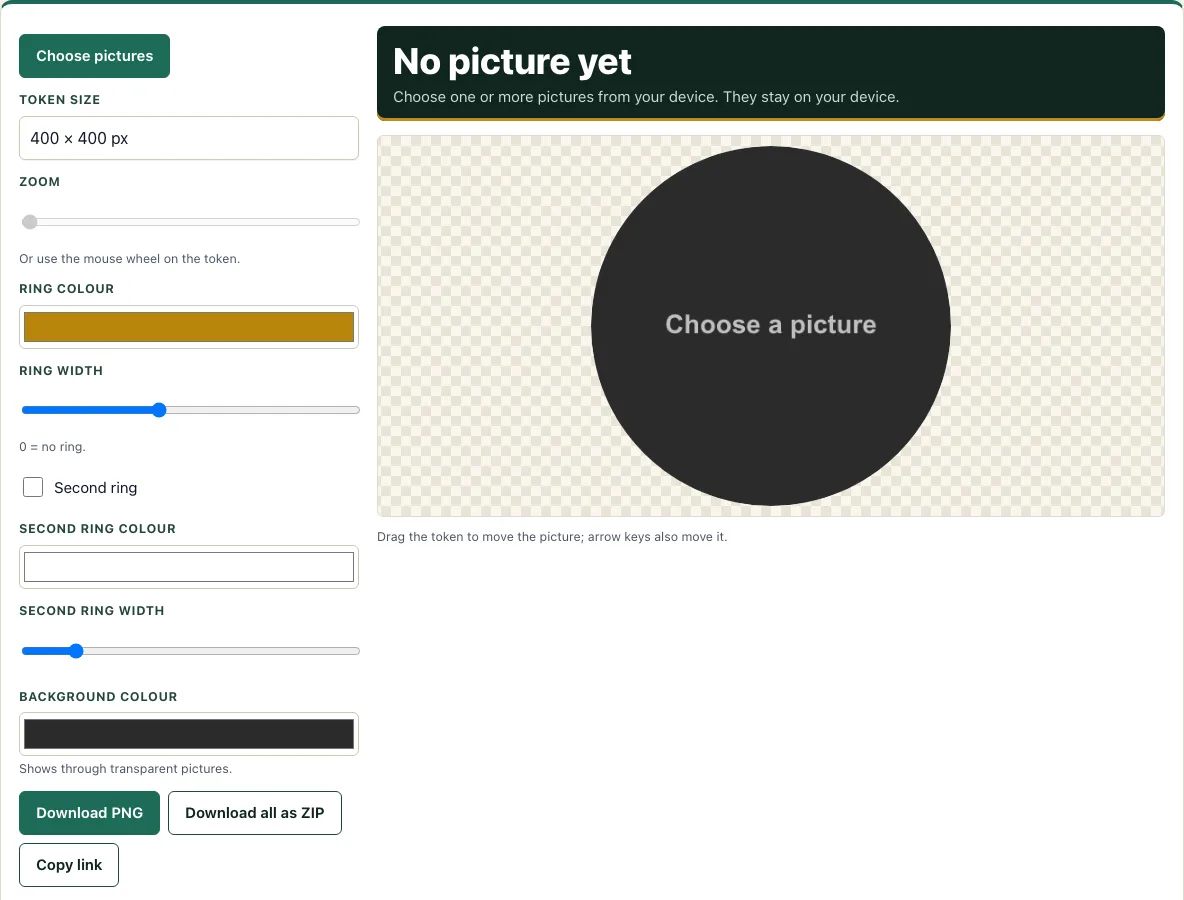
- Click Choose pictures and select one or several images from your device. You can also drop pictures onto the preview.
- Open the Token size list and pick a size. The options are 128, 256, 280, 400, 512 and 1024 pixels square. The default is 400.
- Drag the token to move the picture inside the circle. The arrow keys also move it.
- Use the Zoom slider or the mouse wheel to zoom in. Zoom runs from 1 to 4 times. At 1, the picture just fills the circle.
- Choose a Ring colour. The default is gold.
- Set the Ring width slider. It is a share of the token size, from 0 to 15 percent, with a default of 6. Set it to 0 for no ring.
- If you want a double border, tick Second ring and set the Second ring colour and Second ring width.
- Choose a Background colour. It shows only through the transparent parts of your picture.
- Click a round thumbnail in the strip under the preview to select a picture, or remove it from there. Each picture keeps its own position and zoom, while the ring, size and colours apply to all.
- Click Download PNG to save the current token, or Download all as ZIP to save every loaded picture as its own PNG.
The page address stores your size and ring settings, but not the pictures. Bookmark the address to keep your settings, then add your pictures again when you return.
What size should a token be
A token should be large enough to read clearly on screen and sized to fit the grid you play on. For most virtual tabletops, 256 to 512 pixels square works well, and this tool’s default of 400 pixels falls in that range. Check which pixel size your tabletop expects before you export, because some ask for a specific width.
Size also depends on the creature. On a standard square grid, a medium creature fills one square, while a large creature covers four. A token for a large creature can be larger, so it sits neatly across its squares. Use 128 or 256 for small tokens that will be placed in crowds, and 512 or 1024 when you want fine detail in a single portrait.
How do I make a token from a picture
To make a token from a picture, the tool crops your image to a circle and lets you position it so the important part stays inside. Everything outside the circle becomes transparent in the PNG, so the token looks round on any background. Start with the picture at zoom 1, where it fills the circle, and then drag it until the face or subject is centred.
Next, zoom in if you want a closer crop, for example a head and shoulders rather than a full figure. Zooming in cuts away more of the edges, so keep the main subject within the ring. Finally, add a ring to frame the token, or set the ring width to 0 for a plain edge. If the picture is a long thin shape, such as a full-length figure, it is cropped to the middle at zoom 1, so drag it up or down to bring the head into view. Pictures with a transparent background show the Background colour behind the subject, which is useful for a coloured disc behind a cut-out figure. The ring width is a percentage of the token size, so a 6 percent ring stays in proportion when you change the size.
Frequently asked questions
Can I make tokens for a whole party at once?
Yes. Choose several pictures with Choose pictures, adjust each one in the strip, and then click Download all as ZIP to get one PNG for every loaded picture.
Why is the area outside my token see-through?
The PNG is transparent outside the circle on purpose, so the token shows its round shape on the tabletop. The Background colour only fills the transparent parts of your picture itself.
Are my pictures uploaded anywhere?
No. Pictures are read in your browser and never uploaded. Closing the page clears them, and only the size and ring settings stay in the page address.
Does it cost anything or need an account?
The tool is free and needs no sign-up. There is no watermark on the downloaded PNG or ZIP.
Which token size should I choose for a virtual tabletop?
Many virtual tabletops use 256 to 512 pixels. Check the size your tabletop wants, then pick the matching option in the Token size list before you download.
Why does my ring look too thin or too thick?
The ring width is a share of the token size, from 0 to 15 percent, with a default of 6. Increase or decrease the Ring width slider to change it, or set it to 0 for no ring.
Can I use tokens made here commercially?
Yes, as long as the pictures you put in are yours or used with permission. The token files are yours to use commercially, and no credit to this site is needed. See the terms.
Related tools
- DnD map generator: Use it when you need a battle map to place your tokens on.
- Fantasy map generator: Use it when you want a wider world map for your campaign.
- Monster maker: Use it when you are creating a new creature and need its stats alongside its token.
- Initiative tracker: Use it to keep track of turn order once your tokens are on the table.
- NPC generator: Use it when you need a quick non-player character to match a token you have made.
- DM screen: Use it to keep your key rules and notes in reach while you run the game.