
Initiative Tracker
Add players and monsters, roll initiative and run the fight turn by turn.
Recent
Your last 10 settings, saved only in this browser. Nothing is uploaded.
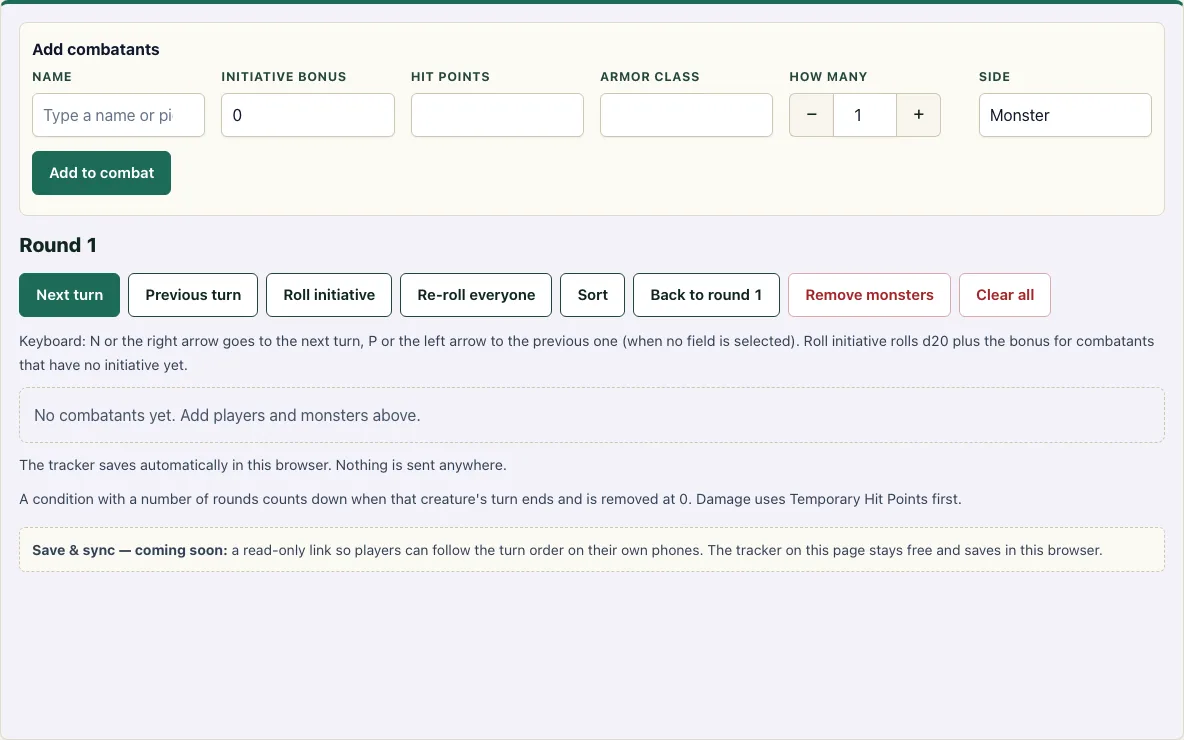
How to use the Initiative Tracker
- Add each player character. In the Add combatants form, type a name, enter the Initiative bonus, Hit points and Armor Class, set Side to Player, and click Add to combat.
- Add monsters. Type a name or pick an SRD monster from the suggestions, which fills in the initiative bonus, hit points and AC. Set How many to add numbered copies such as Goblin Warrior 1, 2 and 3, set Side to Monster, and click Add to combat.
- If you built the fight in the encounter builder, click Send to initiative tracker there instead of entering creatures by hand.
- Click Roll initiative. Every combatant without an initiative value gets a d20 plus its bonus.
- Check the list. If a roll looks wrong, edit the initiative number and the list re-sorts.
- Click Next turn to start. The current combatant is highlighted and marked “(current turn)”, and the line above shows “Round N. Turn: name”.
- During the fight, type a number in the Amount box, then click Damage, Heal or Temp HP on the combatant’s row.
- To apply a condition, open the Add condition menu, choose one, and optionally enter a number in the Rounds box.
- To fix the order by hand, click Sort after editing initiative values, or Back to round 1 to restart the round counter without rolling again.
- Between fights, use Remove monsters to keep your players, Re-roll everyone to start again at round 1 with new rolls, or Clear all to wipe the list (it asks first).
How does initiative work in 5e?
Initiative decides the order in which creatures act during a combat. Each combatant makes a Dexterity check: roll a d20 and add the Dexterity modifier, which is the initiative bonus you enter in the tracker. For the map, a token maker token for each combatant makes the turn order easy to follow.
The highest total goes first, and the order then runs down the list. If two combatants tie, this tracker puts the one with the higher initiative bonus first. One pass through the whole list is a round. When the last combatant has acted, the next round starts again at the top, and the round counter goes up by one. The order stays the same until someone rolls again, so you only need to roll once at the start of a fight. Because the tracker sorts by the numbers you enter, you can also correct a roll by editing it.
How do I track hit points and conditions in combat?
Use the Damage, Heal and Temp HP buttons on each combatant’s row, with the amount typed in the Amount box. Damage uses up Temporary Hit Points first and then reduces hit points. Hit points never drop below 0. A combatant at 0 HP is greyed out and marked “At 0 HP”, and its coloured hit point bar shows how badly it is hurt.
Healing restores hit points up to the maximum, but it does not restore temporary hit points. Temporary hit points do not stack. If a creature already has some, it keeps the higher amount instead of adding the two together.
Conditions come from the Add condition menu, which lists all 15 SRD conditions. A condition with a number in the Rounds box counts down by one when that creature’s turn ends, and it is removed when the count reaches 0. A condition without rounds stays until you click its chip to remove it.
Frequently asked questions
Does it save my combat?
Yes. The whole combat, including the round, the current turn and every combatant, is saved automatically in your browser and comes back when you reload the page. Nothing is sent to a server, so the save stays on the device and browser you used.
Can I add monsters from the SRD?
Yes. Pick a monster from the suggestions in the Name box, and its initiative bonus, hit points and Armor Class are filled in for you.
Are there keyboard shortcuts?
Yes. Press N or the right arrow key to go to the next turn, and P or the left arrow key to go back one turn. These work when no text field is selected, so typing in a box will not skip turns.
Can I use it on my phone?
Yes. The tracker works on a phone, is free to use, and does not need an account.
Can my players see the tracker?
Not yet. A read-only link for players is planned for later, and the tracker will stay free.
Can I bring in creatures from the encounter builder?
Yes. Click Send to initiative tracker in the encounter builder, and its creatures are added here with AC, HP and initiative bonus filled in.
Related tools
- Encounter builder: Use it to plan which creatures make up a fight before you run it here.
- Encounter calculator: Use it to check how hard a planned encounter is for your party.
- Conditions: Use it to look up what a condition does before you apply it to a creature.
- Exhaustion: Use it when you need the rules for exhaustion levels on a character.
- Damage calculator: Use it to work out how much damage a hit deals before you enter it here.
- DM screen: Use it as a quick reference for rules while the fight is running.
- Monster maker: Use it to create a custom creature to add to your combat.
- Random encounter generator: Use it when you need a surprise fight to put in the tracker.