
Fantasy Map Generator
Choose a land shape, size and sea level to draw a world map with rivers and numbered regions.
Recent
Your last 10 settings, saved only in this browser. Nothing is uploaded.
How to use the Fantasy Map Generator
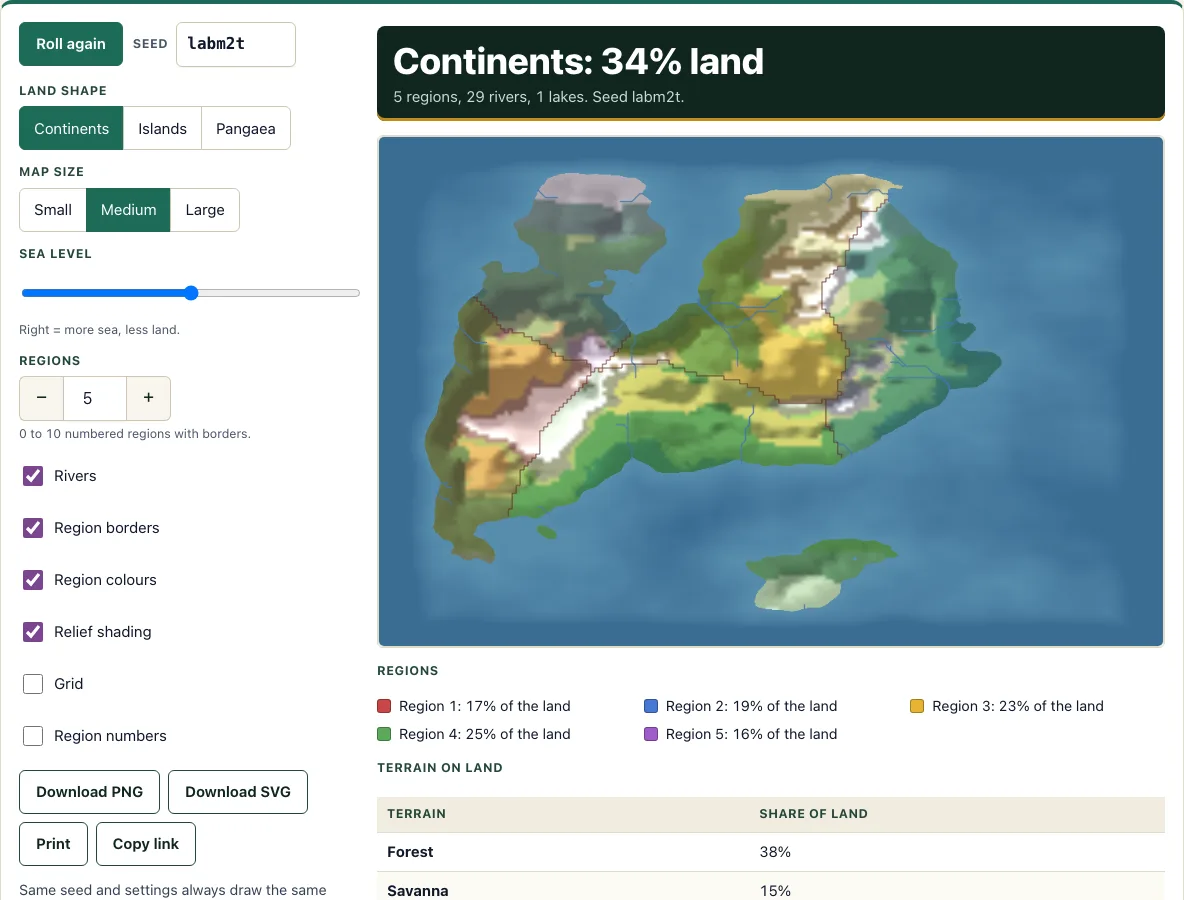
The map draws as soon as the page opens. To shape it:
- Choose a Land shape: Continents, Islands or Pangaea.
- Choose a Map size: Small (120 by 80 terrain cells), Medium (200 by 130) or Large (300 by 190).
- Move the Sea level slider. Moving it right gives more sea and less land.
- Set the Regions stepper between 0 and 10. The default is 5.
- Tick the checkboxes you want: Rivers, Region borders, Region colours, Relief shading, Grid and Region numbers.
- Click Roll again for a new random seed, or type a value in the Seed box to return to a map you have seen before.
- Click Download PNG or Download SVG to save the map.
Changing Land shape, Map size, Sea level or Regions redraws the map at once, while the other checkboxes only change what is shown on the same land. The terrain table under the map shows the share of each terrain type. Print prints the map picture, and Copy link gives you a link to share. The seed is also in the page address, so keep it if you want to rebuild the same map later. Changing the Regions stepper only moves borders and region colours; the land, rivers and lakes stay the same for a given seed, shape, size and sea level.
How are rivers made on a generated map?
Rivers start on high ground and flow downhill. Every land square drains toward the sea, so each river ends at the sea or in a lake. Where water runs into a low dip with no way out, the dip fills up and becomes a lake.
Turn on the Rivers checkbox to see this at work. Because the water follows the height of the land, the rivers you see depend on the terrain under them, so changing the Sea level or rolling a new seed changes the river network too.
Can I use this as a DnD world map generator?
Yes. The tool draws a whole world map, not a dungeon floor plan: choose Continents for several large landmasses, then set the number of numbered regions you want for kingdoms or territories. Download the result as a PNG or SVG and use it as a world map for your own campaign. For a dungeon or building layout on a 5 ft grid, use the DnD map generator for dungeons instead.
How do I make a world map for my tabletop campaign?
Start with the land shape that fits your setting. Continents suits a world with several large landmasses, Islands suits scattered archipelagos, and Pangaea suits a single supercontinent. The sea level sets how much of the map is land: the default for Continents is 34%, for Islands 17% and for Pangaea 31%.
Next, set the Regions count to match the number of kingdoms, nations or territories your campaign needs. Each region grows outward from a numbered capital. Mountains and rivers slow this growth, so borders often follow ranges and waterways. This can make your political borders look natural without any extra work.
The tool never generates place names. Turn on Region numbers to label each region with a number, then write a key that matches each number to a name. You can also add names in an image editor after you download the PNG or SVG.
The Grid draws lines every 10 terrain cells, but it has no fixed distance. Decide the scale yourself, for example by saying one grid square equals 50 miles, and then use that scale for travel times and distances in your campaign. A PNG saves at the on-screen size, which is 1000 by 650 pixels for Medium; the SVG holds the same picture with the rivers, borders and grid as separate lines.
Frequently asked questions
Is the fantasy map generator free to use?
Yes. It is free to use and needs no sign-up. Everything runs in your browser, and nothing you create is uploaded.
Can I use the maps I make in a commercial product?
Yes. Commercial use of maps is allowed, so you can use a map in a product you sell, such as a published adventure or a paid module.
Why does the same map come back when I use the same seed?
The same seed with the same settings always draws the same map. Roll again picks a new seed, and the seed value is shown in the Seed box and in the page address.
Does the tool add place names to my map?
No. The tool never generates place names, so its labels are region numbers only, and they are switched off by default. Add your own names in an image editor after you download the map.
What does the grid on the map measure?
The grid lines are placed every 10 terrain cells, but the tool does not assign them a real-world distance. You set the scale yourself, so one grid square can equal any distance that suits your game.
Does the tool work when I print the map?
Print prints the map picture, so you can get a paper copy of what is on screen. For a file you can keep or edit, use Download PNG or Download SVG.
Related tools
- DnD map generator: Use it when you need a floor plan for a dungeon or building rather than a world map.
- Token maker: Use it to create counters for the characters and creatures that move across your map.
- NPC generator: Use it to create characters to place in the regions and towns you have drawn.
- Shop generator: Use it to stock the markets and trading posts you have put on your map.
- Loot generator: Use it to decide what the players find in the places marked on your map.
- Random encounter generator: Use it to pick what the party meets while they travel between regions.
- DM screen: Use it to keep your key rules and your map notes in reach at the table.