
DnD Encounter Builder
Search the SRD monsters, add them to an encounter and see how hard it is for your party.
Recent
Your last 10 settings, saved only in this browser. Nothing is uploaded.
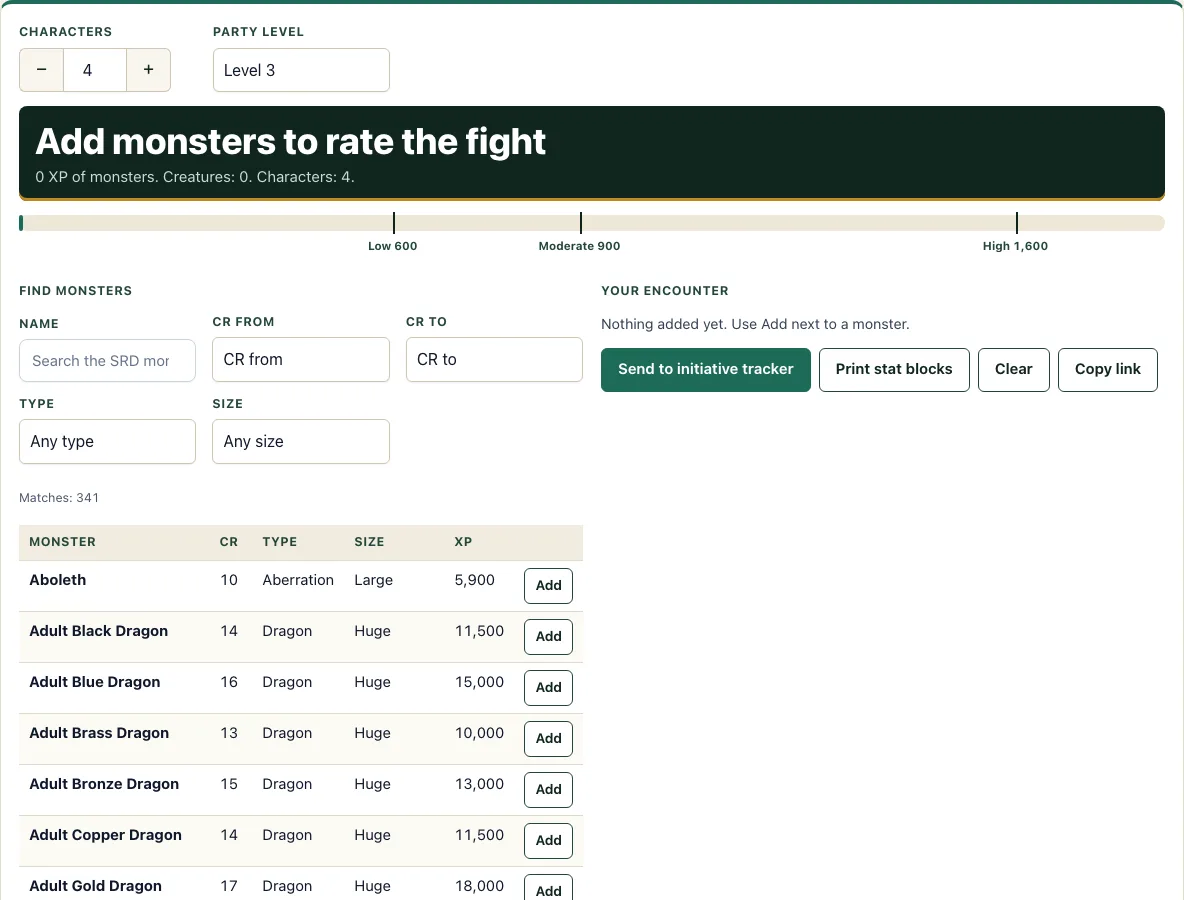
How to use the 5e Encounter Builder
- Set your party at the top. Use the Characters stepper for the number of players and the Party level menu for their level. The budget bar updates straight away.
- Search for monsters. Type a name in the Name box, or use the CR from and CR to menus, the Type menu and the Size menu to narrow the list.
- Press Add on any row. The monster appears in your encounter panel with its CR and XP.
- Press Add on the same monster again to raise its count by one. You can also use its stepper to change the count, or the x button to remove it.
- Read the budget bar. The rating line above it shows how the total compares to your party’s budgets, and any warnings appear under it.
- If the monster you want is not in the first 25 results, press Show 25 more. The line above the list tells you how many monsters match your filters.
- Press Clear to start over.
When you are finished, Print stat blocks creates a sheet with the party line, a summary table and the full SRD stat block for each monster. Send to initiative tracker opens the tracker with every creature added as a combatant, numbered when you have several of one kind. Copy link saves a link that stores your party and monster list.
How do I build a balanced encounter?
A balanced encounter is one whose total monster XP falls within the budget for your party. The budget bar compares your encounter’s total XP against three budgets (Low, Moderate and High) taken from the XP Budget per Character table in SRD 5.2.1 (p.202), scaled to the number of characters in your party. Once the monsters are chosen, the token maker can make a token for each one.
The default party is four characters at level 3, with budgets of 600 XP (Low), 900 XP (Moderate) and 1,600 XP (High). Two Goblin Boss monsters are CR 1 and worth 200 XP each, so together they total 400 XP. That fits within the Low budget, so the bar reads Low. Adding monsters moves the bar past the Low mark (Moderate) and the Moderate mark (High), and the rating line changes to match.
XP is only a guide. The budget ignores terrain, tactics and how well the party plays, so use the rating as a starting point and adjust the encounter to suit your table. The tool also warns you when an encounter has more than two creatures per character, when a monster’s CR is above the party’s average level, or when a monster has CR 0.
How do I find monsters by CR?
To find monsters by CR, set the CR from and CR to menus to the range you want, and the list shows only monsters within it. Each row shows the monster’s CR and XP, so you can compare options quickly. You can combine the CR range with a name search, a type or a size.
Challenge rating is a number that indicates how tough a monster is in combat. A monster whose CR is close to your party’s level is a common place to start. The warning for CR above the party’s average level helps you spot monsters that may be too strong. The list covers the 341 stat blocks in SRD 5.2.1. It does not include monsters from other books.
Where is the list of all SRD monsters?
The monster list is the table of results under the filters: leave every filter empty and it shows all 341 SRD 5.2.1 stat blocks, sorted the way you choose. Narrow it by CR range, type or size, and open a stat block to read it in full. It holds the SRD monsters only, not those of other books.
The list has 28 monsters at CR 0 and 133 at CR 1 or lower. Beasts are the largest type with 83 entries, followed by 47 monstrosities and 45 dragons.
How this tool works and where the numbers come from
Monster stat blocks are the 341 monsters of the SRD 5.2.1, unchanged. The difficulty bar adds up the monsters’ XP and compares it with the XP budget for the party’s size and level from the SRD 5.2.1 encounter-building rules (Low, Moderate, High). It is a planning guide, not a guarantee of how a fight goes.
Sources
- Wizards of the Coast (2025). System Reference Document 5.2.1 (Monsters; Encounter Building). Licensed CC-BY-4.0 (SRD v5.2.1 (published 2025-05-01); page last updated 2026-03-02) · checked
- Wizards of the Coast (2025). SRD 5.2.1, PDF edition (SRD 5.2.1) · checked
- Creative Commons (2013). Attribution 4.0 International (CC BY 4.0) licence of the SRD (4.0 International) · checked
Frequently asked questions
How many monsters should an encounter have?
There is no fixed number. The tool warns you when an encounter has more than two creatures per character, which is a useful upper limit to check. The budget bar shows whether the total XP suits your party, so use it to judge the mix.
What does “Above High” mean?
“Above High” means the encounter’s total XP is more than your party’s High budget. The SRD has no category above High, so the builder only tells you the total is past that budget. Remove or swap a monster if you want the fight to land at High or below.
Which monsters are included?
Only monsters from the SRD are included, and there are 341 stat blocks in SRD 5.2.1. Each stat block is the SRD text exactly as given, licensed CC-BY-4.0. Monsters from other books are not available in this tool.
Can I change the party after adding monsters?
Yes. Changing the Characters stepper or the Party level menu updates the budget bar straight away. Your monster list stays the same, so you can see how the same encounter rates against a different party.
Can I save my encounter for later?
Use Copy link to save your encounter as a link. The link stores your party and your list of monsters, so you can open it again later. A saved encounter library is planned for a later date.
Related tools
- Encounter calculator: Use it to check the difficulty of an encounter when you already know the monsters and party.
- Random encounter generator: Use it when you want a surprise encounter without choosing monsters yourself.
- Initiative tracker: Use it to run the fight and keep track of turn order, hit points and conditions.
- Monster maker: Use it when you want to design your own creature rather than use an SRD monster.
- XP chart: Use it for the XP a character needs to reach each level.
- Conditions: Use it to check the rules for conditions that monsters or characters may inflict.
- DM screen: Use it to keep common rules and reference tables close at hand during play.