
DnD DM Screen
Choose the reference tables you use most and print them or download a landscape PDF.
Recent
Your last 10 settings, saved only in this browser. Nothing is uploaded.
How to use the DM Screen
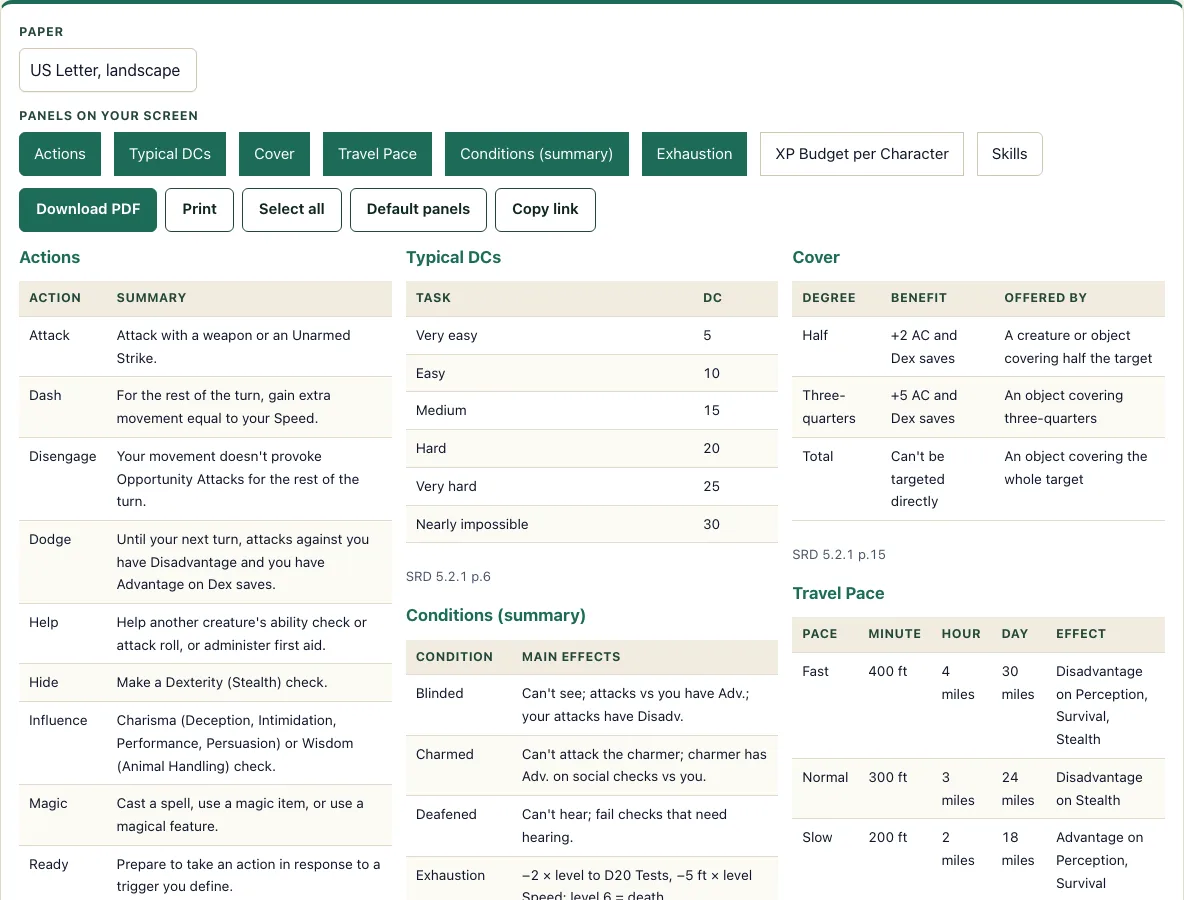
- Under Panels on your screen, tick the panels you want. The options are Actions, Typical DCs, Cover, Travel Pace, Conditions (summary), Exhaustion, XP Budget per Character, and Skills.
- To start from a common set, click Default panels. This selects Actions, Conditions, Cover, Typical DCs, Travel Pace and Exhaustion. To include every panel, click Select all.
- Check the preview. Your chosen panels appear in three columns, balanced by length, and each panel names its SRD 5.2.1 source page.
- Open the Paper menu and choose US Letter landscape or A4 landscape.
- Click Download PDF to save a landscape PDF. If the panels do not fit on one page, the PDF adds extra pages.
- Or click Print to print the same layout in landscape.
If a table does not fit, the PDF simply continues on another page. Each panel keeps its SRD source on the page, so you can check a rule at the book if a table at your table disagrees. Use Select all if you are unsure which panels you will want, then untick the ones you do not need to keep the sheet short. The page address stores your panels and paper size. Save or bookmark the link to come back to the same setup without ticking boxes again.
What goes on a DM screen?
A DM screen holds the reference tables you need most often while running a game, so you do not have to flip through the rulebook mid-session. The panels in this tool cover the twelve actions, Typical DCs from Very easy 5 to Nearly impossible 30, cover, travel pace, conditions, exhaustion, XP budget per character, and the 18 skills with their abilities.
A Difficulty Class (DC) is the number a check must meet or beat. The Typical DCs panel gives you a scale so you can set a number quickly when a player asks to try something unplanned.
The cover panel explains how terrain protects a creature. Half cover gives +2 to AC and Dex saves, three-quarters cover gives +5, and total cover means a creature cannot be targeted directly.
The travel pace panel lists how far a group moves per hour: fast is 4 miles an hour, normal is 3, and slow is 2.
The exhaustion panel shows the effects of each level. Each level gives −2 times the level to D20 Tests and −5 ft times the level to Speed, and death occurs at level 6.
The conditions panel is a shortened summary written by D20 Desk. For the full wording of each condition, use the Conditions page.
What is on the Actions and Typical DCs panels?
The Actions panel gives a one-line summary of each of the twelve actions: Attack, Dash, Disengage, Dodge, Help, Hide, Influence, Magic, Ready, Search, Study and Utilize. The Typical DCs panel lists the six steps of the SRD scale: Very easy 5, Easy 10, Medium 15, Hard 20, Very hard 25 and Nearly impossible 30. Both come from the SRD 5.2.1 and fit comfortably in one column.
What do the XP Budget and Skills panels show?
The XP Budget per Character panel is the SRD table for levels 1 to 20 with the Low, Moderate and High amounts, for example 50, 75 and 100 at level 1. Add the amounts for each character to get the party’s budget, or use the encounter calculator to do it for you. The Skills panel lists all 18 skills with the ability each one uses.
Can I print a DM screen?
Yes. Choose US Letter or A4 landscape in the Paper menu, then click Print to send the layout straight to your printer. You can also download the PDF and print it from there.
Text in the PDF uses a standard font, so it prints cleanly on most home printers. Fold the printed pages in three so they stand up as a screen. Alternatively, slide the PDF into a folder or a screen holder if you prefer not to fold anything.
Frequently asked questions
Can I choose which tables to include?
Yes. Tick or untick any of the eight panels under Panels on your screen, and the preview shows only the panels you chose. The PDF and print layout follow the same selection.
Is the DM screen PDF free?
Yes. The tool is free and needs no account. The PDF is made in your browser, and nothing is uploaded.
Does it work on a phone?
Yes. You can set up the panels and choose a paper size on a phone. Printing or saving the PDF then depends on what your phone and printer support.
Which rules do the panels come from?
The panels use the SRD 5.2.1 rules, and each panel in the preview names its source page. The conditions panel is a shortened summary by D20 Desk, so check the full conditions page when you need exact wording.
Does it work offline or without a printer?
The page needs to load once, and after that the preview and the PDF are made in your browser. Without a printer, download the PDF and keep it on a tablet or phone beside the table.
Which paper sizes can I use?
US Letter and A4, both in landscape. Choose the size in the Paper menu before you click Download PDF or Print.
Can I add my own panels?
Not yet. Custom panels and your own tables are planned for a later update.
Can I use the DM screen PDF commercially?
Yes. The PDF you make is yours for any purpose, including commercial use, for example to include in a product you sell. Its tables come from the SRD 5.2.1, so CC-BY-4.0 asks you to include the SRD attribution if you publish them. See the terms.
Related tools
- Conditions: Look up the full text of each condition when the summary on your screen is not enough.
- Exhaustion: Check how each level of exhaustion affects a character during a long trip or a hard fight.
- Encounter calculator: Work out how difficult a planned encounter is for your party before the session starts.
- Initiative tracker: Keep track of turn order when combat begins.
- XP chart: Look up the XP a character needs for each level and split encounter XP between the party.
- Damage calculator: Work out damage totals during a fight.
- Monster maker: Build a custom monster when the book does not have the creature you need.