
DnD Campaign Planner
Add your sessions, fill in the parts you need, and the plan saves in this browser.
Recent
Your last 10 settings, saved only in this browser. Nothing is uploaded.
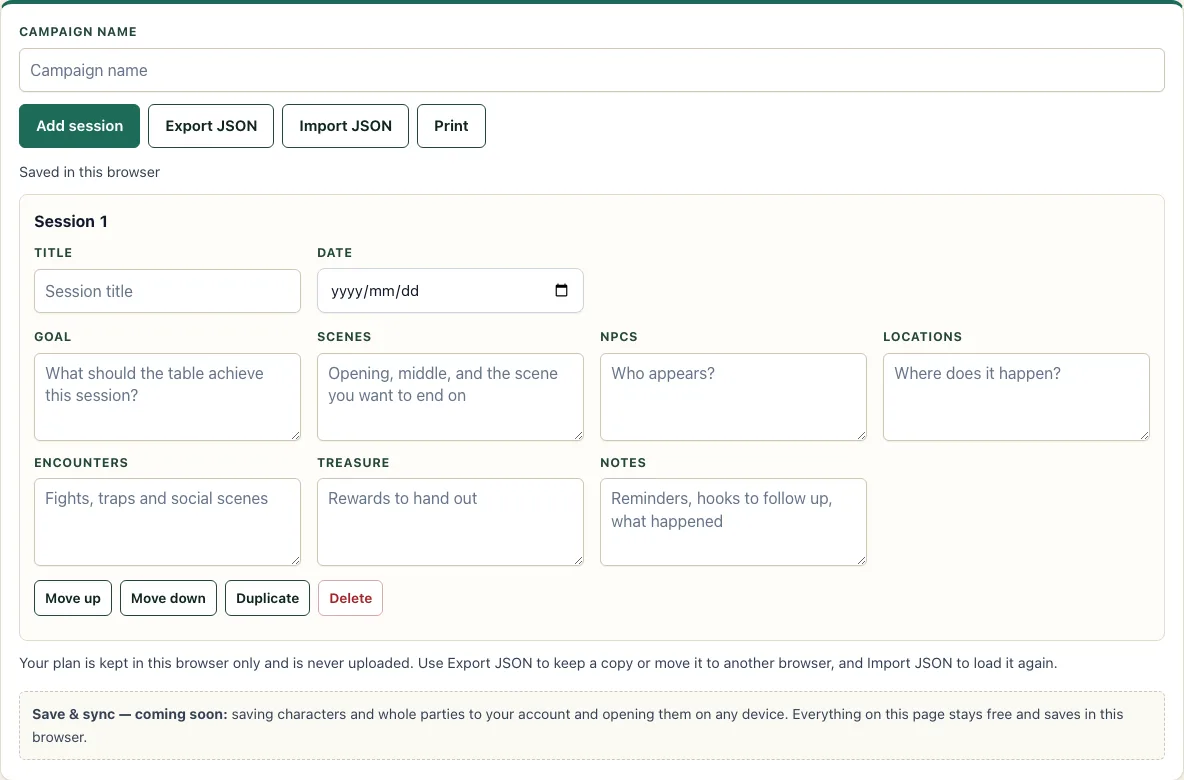
How to use the Campaign planner
- Type a name for your campaign in the Campaign name box at the top.
- The page opens with one blank session. Give it a Title and a Date.
- Fill in the boxes you need: Goal, Scenes, NPCs, Locations, Encounters, Treasure, and Notes. Leave the others empty.
- Click Add session to add a new blank session.
- Click Move up or Move down to put the sessions in order.
- Click Duplicate to copy a session, or Delete to remove one. Delete asks you to click again within 3 seconds to confirm.
- Click Print to print the campaign name and every session, showing only the boxes you filled in.
Your plan saves automatically in this browser, and a line reading “Saved in this browser” confirms it. To keep a backup or share a plan, click Export JSON. This downloads a file named d20desk-campaign.json. Click Import JSON to load such a file, which replaces the plan currently in this browser. Files are limited to 200 sessions and 8,000 characters per box.
The Campaign name and every box are optional, so start with whatever you know and fill in the rest between sessions. Typing saves automatically a moment after you stop, and the page never asks you to press a save button.
How do I plan sessions?
Start with the goal of each session. A session that is clear about what the players should achieve, such as reaching a city, uncovering a rumour, or defeating a rival, gives you a fixed point to build around. Write the goal first, then list the scenes that could lead there, because scenes give the session its order.
Next, fill in the people, places, and fights that appear in those scenes. Add NPCs with a clear reason to be there, locations the players can visit, and encounters that test the goal rather than just filling time. Put rewards in Treasure only when they help the story move forward.
Keep Notes for the things you may need at the table, such as reminders about a secret or a question to ask the group. Plan enough to run the session with confidence, but leave gaps. Players rarely follow a plan exactly, so a session with room to improvise is usually easier to run than one with every line scripted.
Is my plan saved?
Yes, in the browser you are using. The planner saves automatically as you type, and the line “Saved in this browser” shows that the save has happened. Nothing is uploaded, so the plan lives on that device and in that browser only. Another browser or device will not show it unless you move it with Export JSON and Import JSON.
Because the plan is stored locally, clearing your browser’s site data for this page can remove it. Export a file before doing any clean-up you are not sure about. If the browser blocks saving, the page shows a message saying so, and you should export your work to keep a copy.
What should a session plan include?
The nine boxes are a checklist, not a requirement. A short session may need only a goal, two scenes and one encounter. A long one may need NPCs with their wants, the locations they appear in, and the treasure on offer. Write what you would otherwise forget, and leave the rest empty; empty boxes are left out when you print. If the session happens in a new region, draw it first with the fantasy map generator.
Use Duplicate when sessions share a structure, such as a dungeon floor or a series of travel days, so you do not retype the common parts.
Frequently asked questions
Can I move it to another computer?
Yes. On the first computer, click Export JSON and keep the downloaded d20desk-campaign.json file. On the other computer, open this page and click Import JSON, then choose that file. The import replaces the plan already in that browser, so check whether anything there needs keeping first.
Will I be able to see my campaign on any device later?
Not yet. Saving to an account and opening plans on any device is mentioned as coming later. Until then, use Export JSON to carry a plan between devices. Everything else on the page stays free.
What happens if my browser blocks saving?
The page shows a message saying that saving is blocked. Your plan is not kept in that case, so click Export JSON to download a copy before you close the tab. You can then import the file once saving works again.
Does the planner write my campaign for me?
No. It holds the boxes you fill in, including Goal, Scenes, NPCs, and Encounters, and it keeps them in order. It does not generate content. For ready-made material to paste into those boxes, see the generators listed below.
Can I print just one session?
Print produces the campaign name and every session on the plan, with only the filled-in boxes shown. To print a single session, leave the others out of the plan, or export the file and remove the sessions you do not need before printing.
Related tools
- NPC generator: Use it when a session needs a character and you want a starting point for their personality and role.
- City generator: Use it to create a settlement for a session set in a town or city.
- Quest generator: Use it when you need a hook or objective to fill a session’s Goal box.
- Random encounter generator: Use it to produce an encounter idea for the Encounters box.
- Loot generator: Use it to find treasure to note under Treasure.
- Shop generator: Use it to stock a store or market that appears in a session’s Locations.
- DM screen: Use it to keep rules and reference material close while you run the sessions you have planned.
- Initiative tracker: Use it to order and track turns once an encounter starts at the table.